How to set up freebie funnel
Works with: Birdsend,MailerLite and most email tools that support personalized links in redirects and emails.
TimerPulse does not need a native integration or webhooks for this flow. You connect your opt-in, thank-you page, emails, and sales pages using one personal countdown link per campaign. So, let’s see how to set up freebie funnel with proper deadlines in your pages.
What you’re building
A typical freebie funnel looks like this:
- Someone signs up for a freebie.
- They are sent to a thank-you or offer page on your site with a personal countdown (for example, 3 days).
- The same deadline appears in your follow-up emails and on your sales pages, even if they open mail on their phone and browse on a laptop later.
That’s the same idea as personal evergreen deadlines in tools like Deadline Funnel: one real deadline per person, not a timer that resets every time they refresh the page.
Important thing to note here is that the countdown does not start when someone merely opens an email. It starts when they take a step that identifies them, usually right after opt-in, by sending them through your TimerPulse link once.
How it works (in plain terms)
- You create an evergreen campaign in TimerPulse with your duration and your pages.
- After signup, your email tool sends the person to a TimerPulse link that includes their email (or another unique ID you choose).
- TimerPulse starts their deadline and sends them to your thank-you page, where your countdown is embedded.
- In later emails, you use the same type of personalized TimerPulse links (and optional countdown images) so everything stays in sync.
This is a clean approach and webhooks are not required. Your email platform only needs to replace a placeholder (like their email address) in the link when each person signs up or receives an email.
What you need before you start
- A TimerPulse account with an evergreen campaign
- A freebie and opt-in form setup in your ESP
- A thank-you or offer page on your website (where the countdown should appear)
- An expiry page (where people go when time runs out—often your main offer or homepage)
- Your email tool configured with a post-submit redirect and, later, personalized links in messages
Step 1 — Set up TimerPulse
1. Create an evergreen campaign
- Choose Evergreen (not “fixed date” or “starts on page visit only” tripwire-style timers if you want email + multiple devices tied to the same person).
- Set how long the offer runs (for example, 3 days).
- Set your offer page URL to the page where the countdown should show. This would be usually your thank-you page after the freebie. Example:
https://yoursite.com/thank-you-offer/ - Set your expiry page URL to where visitors should go when the deadline ends. Example:
https://yoursite.com/
Save the campaign.
2. Add the countdown to your thank-you page
Once you’ve created the campaign:
- Copy the sales-page countdown snippet and paste it on your thank-you page where you want the timer to appear.
- If you use a site-wide bar, popup, or hidden expiry on other URLs, also copy the site script once in your site header (as described in TimerPulse embed section).
3. Copy your personal countdown link
In the campaign setting, choose your email platform:
- MailerLite/Birdsend: the link already includes a placeholder like
%contact.email%. - Non-supported ESP: choose Other / Custom and enter subscriber identifier in the field
Your link will look similar to:
Keep this link, you’ll need it in your email tool in Part 2.
Also copy your email countdown image and button links when you build follow-up emails. You want to have same placeholder in your emails too to keep consistent deadlines.
Step 2 – Configure Redirect in your ESP
Once you’ve configured campaign in TimerPulse, now we will go back to your ESP. In the post-submission action for your form/freebie, redirect new subscribers to TimerPulse link created in Part 1. Do not send new subscribers straight to the thank-you page if you want the deadline to start automatically and stay tied to their email.
Set your after-signup redirect to your TimerPulse link copied in Step 1(with the personalization placeholder). TimerPulse will then send them to your thank-you page with the countdown already running.
Birdsend – use Birdsend’s contact email merge field:
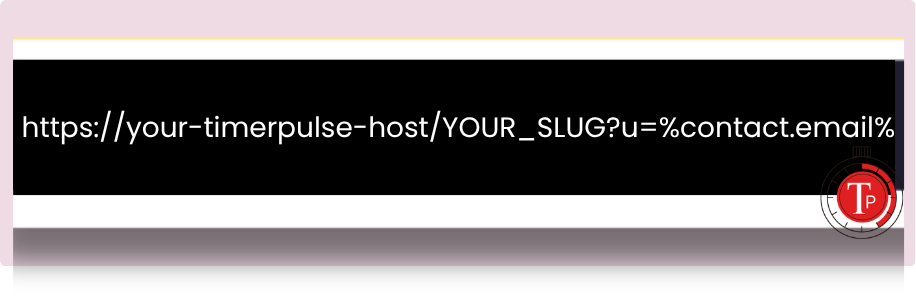
MailerLite – use MailerLite’s email merge field (TimerPulse uses this when ESP is set to MailerLite):
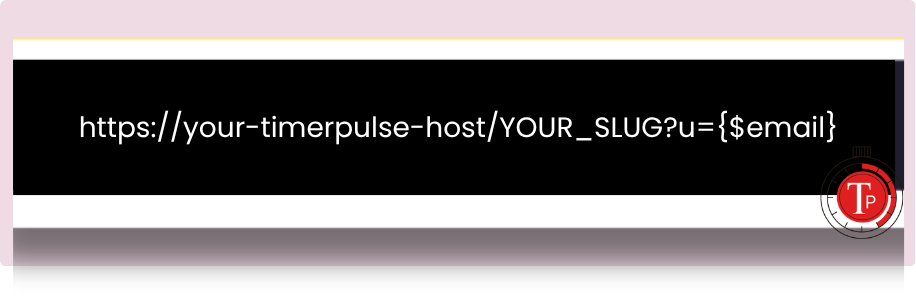
Replace YOUR_SLUG with your campaign’s short link from TimerPulse and your-timerpulse-host with your app domain (e.g. timerpulse-app-staging.up.railway.app or your production host).
When someone opts in, MailerLite or Birdsend sends them to that URL with their real email in place of the placeholder; that visit starts their personal countdown and then sends them to your offer page. Use the same style of link (with the same placeholder) in follow-up emails so the countdown stays in sync on other devices.
Other email platforms
Use the same pattern: TimerPulse link + u= + your provider’s merge tag for email or contact ID. This will be used to identify subscriber on signup and trigger their deadlines.
Step 3 – Use the same personalization in emails & sales page
To keep the same deadline in nurture emails and on sales pages:
- Use TimerPulse email links from embed sections in buttons and text links (
u=+ same placeholder). - Optional: if you want, add the countdown GIF from Embeds so the timer is visible inside the email.
- Put the same inline countdown snippet on sales pages
- Use TimerPulse email links in any emails to ensure deadline is consistent
- Use Strict in evergreen campaign configuration to ensure a bare sales page url without the email personalization goes to expiry url
Quick test
- Once your configuration is done and updated welcome sequence with TimerPulse email link, test the entire flow.
- Sign up for your freebie
- Check if you land on the Thank You page with countdown timer
- Click on link in welcome email and see the deadline stays same
- Open the same link in another browser (or incognito). You should see the same remaining time for that email.
Frequently asked questions
1. Does the timer start when they open an email?
No. It starts when they hit your TimerPulse link, typically right after signup, or when they click a link in an email.
2. Can I send people straight to the thank-you page?
You can, but their personal deadline won’t start reliably or match emails unless they’ve already been through your TimerPulse link with their email or ID.
3. Tripwire vs evergreen – which should I use?
To keep consistent deadline for “same person across emails and devices,” use Evergreen and identify them with email (or contact ID) in your links. “Tripwire” style timers are better for “starts when they land on one page” without tying to an email list.
4.What if someone shares my sales page link?
Set “Strict” to true to send anyone with a generic link to expiry url. This way it shows your Thank You page only to people who have subscribed and protects the integrity of the offer for real subscribers.
5. Can it trigger deadline for new subscribers for my ESP?
TimerPulse can trigger a deadline for new subscribers for any ESP that provides subscriber identifier and personalize redirect URL on freebie sign up. If your ESP supports these two conditions, it will work with TimerPulse.
6. How to find my ESP subscriber identifier?
TimerPulse integrates with MailerLite, Birdsend, Kit. Check your ESP or let us know and we will help to find your ESPs subscriber identifier.
Checklist
- Evergreen campaign created; duration and expiry page set
- Offer page URL in TimerPulse = thank-you (or main offer) page
- Countdown embed on thank-you page (and sales pages as needed)
- Post-signup redirect = TimerPulse link with email placeholder
- Email links and GIF use the same placeholder
- Tested with a real signup
Need help?
If you’re stuck on a specific email tool or URL, contact us with your thank-you page URL and which platform you use and we’ll point you to the right settings.
Don’t have a TimerPulse account yet? TimerPulse creates one deadline per subscriber, consistent in the email and on the page, starting on a link click or when someone is added to your email list. Have a look.

One Comment